Quick answer: To make your Mac aesthetic, start in System Settings. Pick a wallpaper under Wallpaper, choose a colour and icon style under Appearance, recolour folders with Customise Folder, add desktop widgets, tint the pointer under Accessibility > Display, tidy the menu bar and choose a softer alert sound. Nearly all of it is built in.
Every Mac comes out of the box looking like every other Mac: the same wallpaper, the same blue buttons, folders the colour of a municipal swimming pool. It is very tidy and says nothing about you.
This guide builds a cosy, slightly pixel-art aesthetic Mac setup, mostly from settings you already have. The macOS steps come from Apple's own guides for macOS 27, linked as we go.
Where do you find a pixel art wallpaper for Mac?
Start with the wallpaper, since it covers the most screen. Open System Settings > Wallpaper. Apple's Wallpaper settings guide lists the built-in options: Dynamic Wallpapers that change with the time of day, aerials that animate when you lock or unlock your Mac, and Colours for a plain background. Switch on "Show on all Spaces" if you use more than one desktop.
None of Apple's wallpapers are pixel art. For that, look elsewhere:
- Basic Apple Guy posts handmade wallpapers, among them Apple Pixel Park, a pixel-art Apple Park drawn in Aseprite, with Mac, iPad and iPhone versions.
- itch.io artists sell pixel-art wallpaper packs, some for about a dollar. Each item's page sets its own terms.
- Unsplash images come under the Unsplash licence: free to use, attribution not required but welcome.
- Dynamic Wallpaper Club is a free community gallery and maker for wallpapers that shift through the day.
Respect the licence. Using an image on your own desktop is fine. Reposting or selling it is not, unless the artist says so. If there are no terms, ask the artist.
Can you have an animated wallpaper?
Yes. The built-in aerials move when you lock and unlock the Mac. For a loop that plays all day, Plash, a free Mac App Store app from Sindre Sorhus, shows any website or animated GIF as your wallpaper. A looping pixel-art campfire gives you a desktop that crackles (silently).
How do you change the accent colour on a Mac?
The Mac's accent colour lives in System Settings > Appearance. In macOS 27 the setting is just called "Colour", and Apple's Appearance settings guide says it sets buttons, pop-up menus and other controls. "Text highlight colour" is a separate option for selected text.
For a cosy look, take one colour from your wallpaper and use it for both: orange for a campfire, green for a forest. Pick Dark mode if you mostly work in the evening, then switch on "Tint window background with wallpaper colour" so windows pick up a faint wash of the wallpaper.
How do you change folder colours and icon styles?
Icon & widget style
The same Appearance pane has "Icon & widget style", with four options: Default, Dark, Clear and Tinted. Tinted makes items opaque against a dark background and adds one setting, "Icon, widget & folder colour", that recolours icons, widgets and Finder folders together. The other three styles have a separate "Folder colour" setting.
Tinted with a warm amber looks like an old game menu. For the Dock itself (size, spacers, new icons), see our guide to customising the Dock on a Mac.
Customise one folder
To recolour just one folder, Apple's guide to customising folders says to select the folder, click the Action button in the Finder toolbar and choose Customise Folder. Pick a coloured circle, a symbol, or click Emoji to choose one. A mushroom on Recipes is worth the effort. Your Home folder can be customised, but built-in folders such as Applications, Library, System and Users cannot.
Give a folder a pixel-art icon
For a fully custom icon, use Get Info. Copy the image in Preview, select the folder, choose File > Get Info, click the small icon at the top of the window and choose Edit > Paste. To undo it, click the small icon again and choose Edit > Cut.
macOSicons lists more than 30,000 free icons for Mac apps, submitted by its users. Its home page doesn't state a licence, so keep them for your own Mac.
How do you add widgets to the Mac desktop?
Control-click the wallpaper and choose Edit Widgets. Apple's widgets guide says to search or browse the gallery, click a widget or drag it into place, then click Done. Control-click a widget later to resize it.
A clock, the weather and one photo is plenty. Any more and the desktop starts to look like an airport departures board. If the clutter is files rather than widgets, clean up your Mac desktop first.
In System Settings > Desktop & Dock, "Dim widgets on desktop" set to Never keeps them in full colour, Always makes them monochrome, and Automatically switches.
How do you change the pointer colour on a Mac?
The Mac pointer colour is set in System Settings > Accessibility > Display, under Pointer. Apple's display accessibility guide lists "Pointer outline colour", "Pointer fill colour" and "Pointer size". Reset Colours puts the defaults back.
A cream fill with a dark brown outline looks like an old adventure game pointer. Keep it easy to spot against your wallpaper; this is an accessibility setting first.
How do you tidy the menu bar?
Open System Settings > Menu Bar. Apple's Menu Bar settings guide lets you turn off system items you never use, and the "Allow in the Menu Bar" list does the same for apps. The clock always stays.
Hold Command and drag to rearrange icons, or Command-drag one off the bar to remove it, as Apple's menu bar guide describes. You can also let the wallpaper show behind the menu bar.
If you would rather fill the space with something silly, desktop pets and menu bar toys are in fun Mac apps that do nothing useful.
How do you change the alert sound on a Mac?
Open System Settings > Sound, then pick from "Alert sound" under Sound Effects. Apple's sound settings guide notes that each one plays as you select it, so you can audition them all.
For a custom sound, such as a soft chiptune blip, MacMost's custom alert sound guide says to save it as an AIFF file in ~/Library/Sounds, creating the folder if needed. Apple doesn't document this, so it may not survive every update.
A twenty-minute cosy makeover
- Choose the wallpaper first. One pixel-art scene you would happily stare at, from a source whose licence you have read.
- Take one colour from it. Use it for Colour and Text highlight colour, and turn on wallpaper tinting.
- Recolour three folders. Customise Folder on the ones you open most, with an emoji each.
- Turn the noise down. Remove menu bar icons you never click and keep three widgets at most.
- Finish with the details. A warm pointer fill and an alert sound that doesn't make you jump.
A cauldron for the end of the Dock
If you have made it this far, your Mac is probably starting to look like a cosy game. The Bin is the one Dock icon you can't restyle.
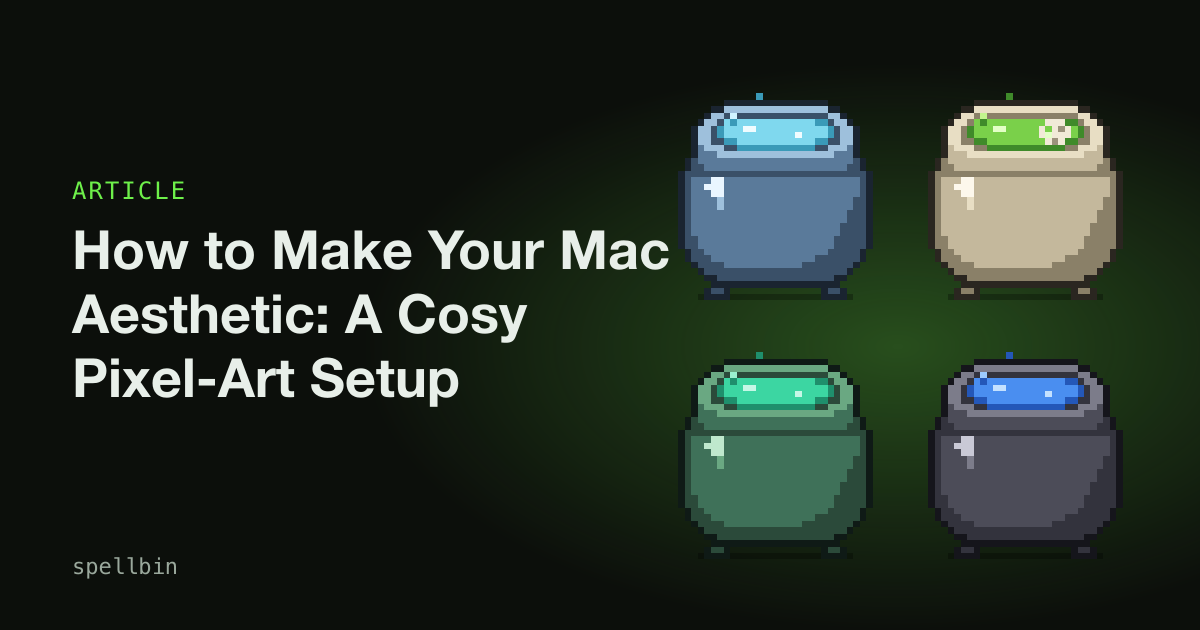
Spellbin is our own small paid Mac app: a pixel-art cauldron that sits beside the Bin. Drop a file on it and a green flame carrying the file's thumbnail rises out and dissolves, and by default the file goes to the real Bin underneath. Drops unlock new cauldron skins as you go, Frost and Verdigris among them, so the pot can match your wallpaper. It won't clean your Mac or make it faster; it is there to be looked at. You can download Spellbin and the getting started guide shows how it works.
A cosy Mac is mostly one good wallpaper and the patience to match everything else to it.
Frequently Asked Questions
Can you change the folder colour on a Mac?
Yes. macOS 27 lets you recolour folders in two ways. System Settings > Appearance has a folder colour setting for every Finder folder, and Customise Folder in the Finder's Action menu changes one folder's colour, symbol or emoji. Built-in folders such as Applications and Library cannot be customised.
Can you use a custom cursor shape on a Mac?
The Mac's built-in pointer settings change colour and size, not shape. Under System Settings > Accessibility > Display > Pointer you can set the outline colour, fill colour and size, and turn on shake to locate. Apple's guide lists no option for a different pointer shape.
Where can I find free pixel art wallpapers for Mac?
Free pixel art wallpapers for Mac turn up on artists' own sites, such as Basic Apple Guy, and on Unsplash, whose licence allows free use. itch.io has packs too, some for about a dollar, each with its own terms. Read the licence before sharing or reposting anything you download.
How do I make my Mac look cosy?
A cosy Mac setup starts with a warm wallpaper, then repeats one of its colours. Use Dark appearance, a matching accent and highlight colour, Tinted icons, and a few recoloured folders. Keep the menu bar sparse, keep desktop widgets to three at most, and pick a quiet alert sound.
Final Takeaways
- Wallpaper first. Everything else takes its colour from it.
- Appearance does most of the work. Colour, highlight, icon style, folder colour and wallpaper tinting all sit in one pane.
- Customise Folder is the quick route. It changes a folder's colour, symbol or emoji without any image editing.
- Check the licence before you share any wallpaper or icon you didn't make.
- Fewer things look cosier. Trim the menu bar and the widgets before adding anything.

Josh Ibbotson
Josh is an indie developer in the UK. He makes Spellbin, a pixel-art cauldron for your Dock, and Gym Note Plus.
Feed the cauldron
Spellbin is $1.99 once, for macOS 14 or later, with a 14-day money-back guarantee. Drop files on it, unlock skins, keep your Desktop tidy.
Get Spellbin for $1.99Already bought Spellbin? Download it here